
How to Import Students and Contacts Into Kajabi?
Learn how to import students and contacts into Kajabi using CSV files, add individual contacts manually, and migrate customer information from platforms like Teachable and Podia.
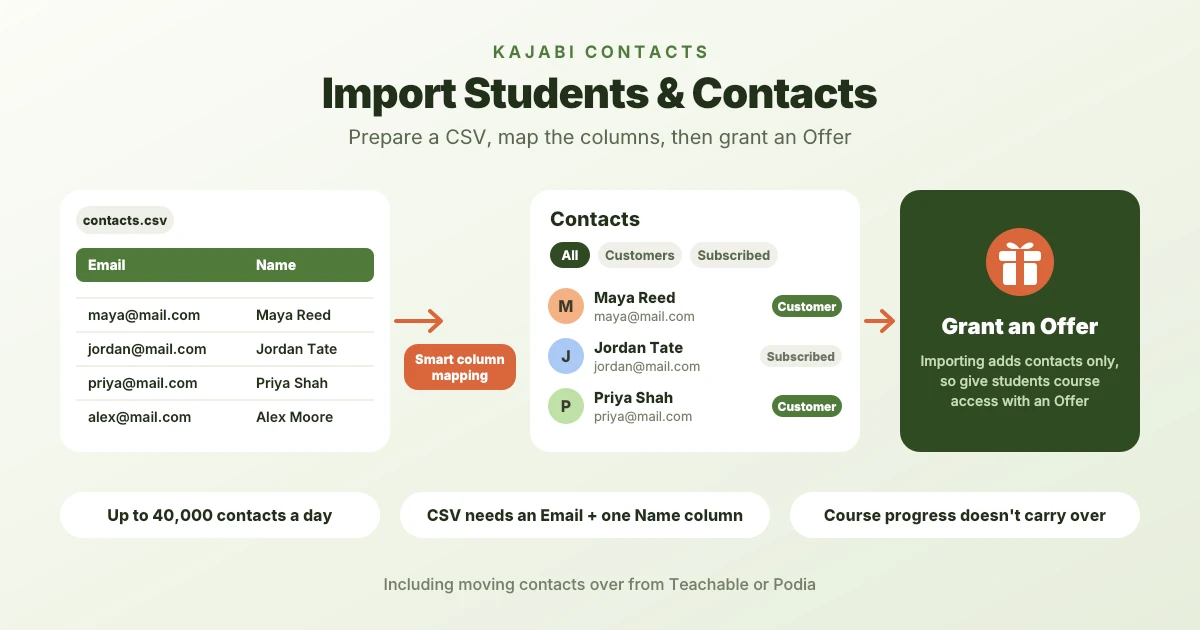
Table of Contents ▼
Quick Answer
This guide explains how Kajabi's Contacts feature helps course creators manage customers, subscribers, and other contacts. It covers preparing CSV files, importing contact information in bulk, adding individual contacts, and migrating contacts from Teachable and Podia. It also explains how to assign Offers to imported students and what happens to course enrollments, passwords, and learning progress during a platform migration.
Key Takeaways
- Course creators can use CSV files to upload contact information and organize records through the Contacts dashboard.
- The Add Single Contact option lets creators enter contact details, apply tags, and grant Offers.
- Moving from Teachable or Podia involves exporting contact and customer information, preparing CSV files, and rebuilding products and Offers in Kajabi.
- 1. Students must receive the appropriate Kajabi Offer to access their courses, while previous passwords, enrollments, and learning records may need separate handling.
How does Student and Contact Importing work in Kajabi?
In Kajabi, within the Contacts tab, you will find a built-in Customer Relationship Management System, or CRM for short. Here is where all of your contacts are added, and you to view and manage them as you see fit. Kajabi uses Segments and Filters so that you can oversee your contacts.
Kajabi divides your contacts into three segments:
Contacts: These are all the people within your contacts, so they can be the ones who subscribed, unsubscribed, purchased an offer, etc. When you add a contact, you can learn more by clicking on their profile. Kajabi views your contacts using the default Segments that divide your contacts:
- All Contacts: Every contact on your site, including Customers, Subscribers, and contacts who unsubscribed or never subscribed
- Customers: Contacts who have purchased or been granted an Offer
- Subscribed: Contacts who have consented to receive your marketing emails
- Inactive: Subscribed contacts who have not opened or clicked an email recently
- Hard Bounced: Contacts whose email address returned a permanent delivery failure
Customers: Contacts who purchased or have been granted an offer on your site. In Kajabi, they are marked with a badge on their avatar, so that it’s easy to distinguish them from your other contacts.
Subscribers: are the ones who have given their consent to receive your marketing emails. They are added through a Form submission, or they are imported directly to your website.
How to Prepare a CSV file for importing?
Within Kajabi, you are provided with the Contacts Importer Tool, which allows you to upload a comma-separated values (CSV) file directly into the import table. The importer tool uses an intelligent column mapping; what this does is that it recognizes the column headers within the CSV file and organizes the data according to that.
Kajabi states that you can import up to 40,000 contacts daily with your Kajabi account, but if you are on a trial period with Kajabi, this feature won’t be available to you until your trial expires and your paid subscription begins.
Now, how to prepare a CSV file. Kajabi provides its own CSV template, which makes the work easier for their creators. Simply first:
- From your Dashboard, click your Contacts, then select All Contacts
- Click the Add Contacts tab, and select Import CSV
- Finally, download the Kajabi CSV template
The template Kajabi provides includes the recommended columns for you to fill out. Once you have filled out the contacts, upload it to your importer, and the contacts will automatically map into Kajabi. Kajabi then sends a confirmation email with the total count of successfully imported contacts and a link to a file that explains why some contacts weren’t uploaded and what error occurred.
Importing a Single Contact
If you only need to add a few contacts, you can enter their details manually instead of importing a CSV file. Open Contacts from your Kajabi Dashboard and click + Add Contacts → Add Single Contact. Enter the contact’s name and email address, making sure the email is correctly formatted.
You can also add a tag to organize the contact or grant an Offer to provide access to a course or product. If the person has agreed to receive promotional emails, select Subscribe to marketing emails. Once you have reviewed the details, click Save to add the contact.
Migrating Contacts from Teachable to Kajabi
Moving your contacts from Teachable to Kajabi is simple; you use a CSV file. The CSV file allows you to bring details such as student names and email addresses into your new platform without adding each contact individually.
Start by logging in to your Teachable school and navigating to Users → Students. Export your student list as a CSV file, applying filters if you only want to transfer specific contacts. Once the file is downloaded, open it in Excel or Google Sheets and review the information. Check that student names and email addresses are included, remove unnecessary columns, and correct any missing or incorrectly formatted details.
Before importing the file, make sure it follows Kajabi’s CSV requirements. The spreadsheet should include an Email column and a single Name column. If Teachable exports first and last names separately, combine them into one column before proceeding. Next, log in to Kajabi and navigate to Contacts → All Contacts. Click + Add Contacts, select Import CSV, and upload your prepared file. Kajabi will allow you to match the spreadsheet columns with the corresponding contact fields.
Migrating Contacts from Podia to Kajabi
Moving from Podia to Kajabi requires a manual migration. You will need to export your contacts and product customer lists, download your course files, and rebuild your products and pricing in Kajabi.
To export your contacts, log in to Podia, click your site name, and select Admin. Go to Audience → Contacts, select all contacts, then choose Actions → Export. Confirm the export and check your email for the CSV file.
You should also export the customer list for each paid product. Go to Products, open a product, click the three-dot menu, and select Export customers. Repeat this for each product. These lists help you identify which customers purchased each course so you can assign them the correct Kajabi Offers.
Next, download your course videos, audio files, and attachments from Podia’s Files Library. Keep in mind that downloaded videos may be compressed versions rather than your original files. If you still have the original copies saved elsewhere, use those when uploading your content to Kajabi.
Once your products and Offers are ready in Kajabi, import your contacts using the CSV file and assign the appropriate Offer to each group of customers. You will also need to migrate your email communications separately. Update your domain’s DNS settings only after your Kajabi site is fully prepared, so visitors are directed to the new site without disruption.
What Happens to Student Course After Importing Contacts to Kajabi?
Importing contacts into Kajabi does not automatically transfer students’ course enrolments, passwords, or learning progress from another platform. It only adds their contact information to your Kajabi account.
To give students access to their courses, you need to grant them the relevant Kajabi Offer. You can do this during the contact import process or manually afterward. Once an Offer is assigned, students can access the included products through their Kajabi accounts.
Keep in mind that students may need to create or activate their Kajabi accounts before accessing their courses. Their previous lesson completion records, quiz results, and learning progress will not automatically carry over. You may need to guide students through the login process and explain how to access their courses on the new platform.
Final thoughts
Moving students and contacts to Kajabi requires careful preparation, especially when migrating from another course platform. By exporting contact lists, organizing customer information, and assigning the correct Offers, you can make the transition easier for both your business and your students. Remember to rebuild your products, check course access, and test everything before completing the migration. This helps ensure students can continue learning without unnecessary confusion or disruption.
Need Help Building or Scaling Your Online Learning Program?
Whether you are launching an academy on Kajabi, modernizing corporate LMS modules, or converting raw expertise into accredited curriculum, our senior instructional designers provide a complimentary architecture evaluation.
Sources & References
Frequently Asked Questions
QCan I import students into Kajabi without importing their email subscribers?
Yes. You can import contact information without automatically subscribing everyone to marketing emails. However, you should only mark contacts as subscribed when they have given the appropriate consent to receive promotional communications. Importing a contact and subscribing them to marketing emails are separate actions.
QDoes Kajabi automatically send login details to imported students?
Importing contacts does not necessarily give students immediate course access or transfer their previous login credentials. Once you grant the relevant Offer, Kajabi can provide account access instructions or account activation information, depending on the student's existing account status and your setup.
QCan I import student purchase history from Teachable or Podia into Kajabi?
A CSV import can bring over contact details, but it does not automatically recreate the complete purchase history from another platform. You should export customer lists separately, identify which students purchased each product, and grant the corresponding Kajabi Offers to restore course access.
