Kajabi User Roles and Permissions: How Does Account Access Work?
Learn how Kajabi user roles and permissions work, compare Owner, Administrator, and Assistant access, and discover how to add, customize, and suspend team member accounts.
Quick Answer
This guide explains Kajabi's user roles and permission settings, including the differences between Owners, Administrators, and Assistants. It covers how to add team members, customize their access, understand user limits by subscription plan, and suspend accounts when access is no longer required.
Key Takeaways
- Owner, Administrator, and Assistant roles determine what team members can manage within an account.
- They can oversee most account activities, while Assistants generally handle specific content and operational tasks.
- Account Owners and eligible Co-owners can adjust access so team members only use the tools required for their responsibilities.
- Kajabi limits the number of Co-owners and Administrators, while Assistants and Support Specialists have different access allowances.
What Are Kajabi User Roles and Permissions?
User Roles in Kajabi refer to the different levels of access and permissions each user has within the platform. They determine what a user can use and do within their Kajabi account. There are three types:
- Owner: The Account Owner has full control over the Kajabi account, including billing, user management, and account settings.
- Administrator: Administrators can manage most areas of the account, including content, marketing, analytics, and billing. However, they cannot manage certain financial settings, such as connecting payment processors or setting up sales tax.
- Assistant: Assistants can create and manage content, courses, offers, coupons, and contacts on the sites assigned to them. Their access to payment management can also be enabled when needed.
What Can Each Kajabi User Role Access?
Kajabi provides different access levels for account owners and team members, allowing businesses to control who can manage content, marketing, and account settings.
-
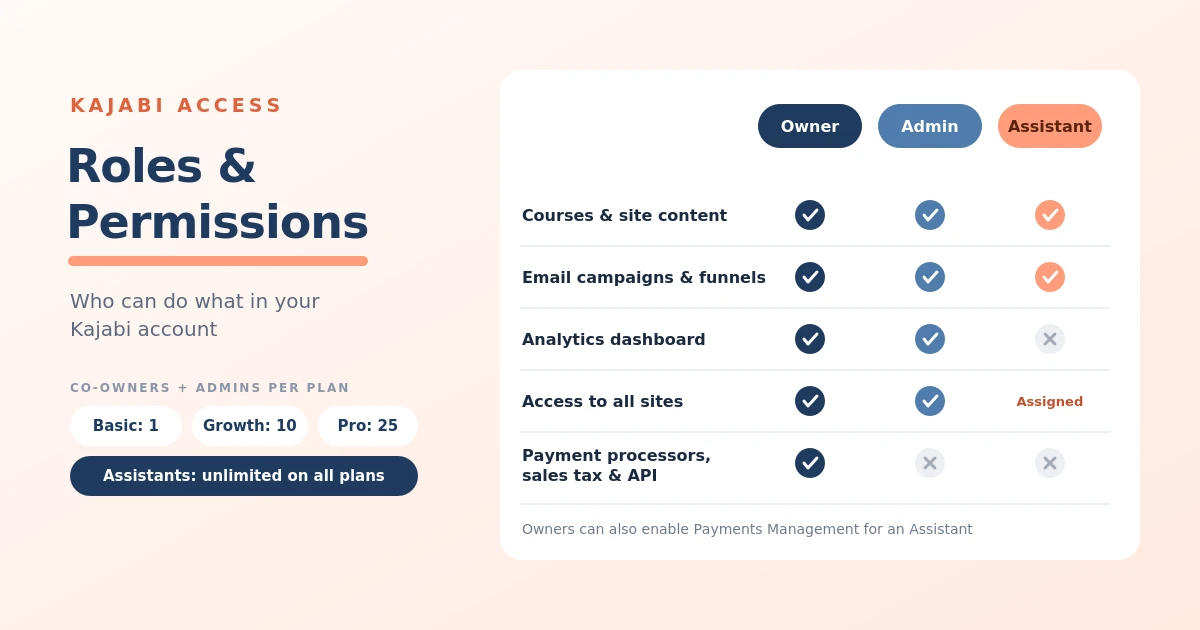
Owner: The Account Owner has full control over the Kajabi account, including billing, user management, payment processor setup, and account settings. They can manage all sites and control who has access to the account.
-
Administrator: These users can access and manage most areas of the account, including courses, website pages, email campaigns, funnels, contacts, analytics, and sales. They can also manage other account users. However, they cannot connect payment processors, configure sales tax, or manage API credentials.
-
Assistant: Assistants can create and edit courses, manage website content, set up email campaigns and funnels, and work with offers, coupons, and contacts on the sites assigned to them. By default, they cannot access the main Analytics dashboard, billing settings, or the Payments section. However, the Account Owner can enable Payments Management Access if an Assistant needs to handle customer refunds or subscription changes.
Choosing the right role helps you delegate tasks while maintaining control over sensitive account settings. Kajabi also offers custom permissions on eligible accounts, allowing the Owner to adjust access to specific features based on each team member’s responsibilities.
What Is the Difference Between a Kajabi Administrator and an Assistant?
The main difference between a Kajabi Administrator and an Assistant is the level of account access and responsibility they have. An Administrator has broader access to the entire Kajabi account, while an Assistant is given access to specific sites and tools needed for their assigned tasks.
Administrators can manage courses, website content, marketing campaigns, sales, contacts, analytics, and other account users. They can also access all sites within the account. However, they cannot connect payment processors, configure sales tax, or manage API credentials.
Assistants have more limited access and mainly focus on creating and managing content, courses, offers, coupons, email campaigns, and contacts on their assigned sites. They cannot access the main Analytics dashboard, account billing, or the Sales Payments section. However, the Account Owner can enable Payments Management Access if an Assistant needs to issue refunds or manage customer subscriptions.
In short, the Administrator role is better suited to team members who oversee several areas of the business, while the Assistant role is ideal for people who handle specific operational and content-related tasks.
How to Add a User to Your Kajabi Account
Kajabi allows account owners to add team members so they can help manage different parts of the business. Each user gets their own login credentials and assigned permissions, so you don’t have to share your account password.
To add a new user to your Kajabi account, follow these steps:
- Open Manage Users: Log in to your Kajabi dashboard, go to Settings, and select Manage Users.
- Create a new user: Click New User to open the account user form.
- Enter user details: Add the person’s first name, last name, email address, and other required information, such as their time zone and password.
- Assign a role: Choose the appropriate role based on the level of access they need. You can select Administrator or Assistant, depending on their responsibilities.
- Select site access: If you’re adding an Assistant, choose the specific sites they need to work on. Administrators automatically receive access to every site.
- Save the user: Click Save to create the account. Kajabi will send the new user an email to verify their email address.
Once the account is created, share the login credentials with the team member. They must verify their email address within 24 hours and will be asked to change their password the first time they log in.
Can You Customize Kajabi User Permissions?
Yes, Kajabi allows you to customize account user permissions so team members can access only the tools and features they need. Rather than relying entirely on the default Administrator or Assistant permissions, the Account Owner or a Co-owner can adjust individual permissions for each user.
For example, you can allow a team member to manage courses and website content without giving them access to billing or payment settings. You can also control access to marketing campaigns, analytics, contacts, and other areas of the account.
How Many Users Can You Add to a Kajabi Account?
The number of users you can add to a Kajabi account depends on your subscription plan and the roles you assign them. Kajabi limits the number of Co-owners and Administrators you can add, while Assistants and Support Specialists are unlimited across all plans.
The user limits are as follows:
- Kickstarter and Basic: You can add 1 Co-owner or Administrator.
- Growth: You can add up to 10 Co-owners and Administrators combined.
- Pro: You can add up to 25 Co-owners and Administrators combined.
The Account Owner does not count toward these limits. If you need more team members with administrative access, Kajabi offers the option to purchase additional account users. You can also change an Administrator’s role to Assistant to free up a space. Suspended users do not count toward the limit.
This means you can add as many Assistants as your business needs without using up your plan’s allowance for administrative users. However, customized permissions may affect how a user is counted, depending on their assigned role.
How to Remove or Suspend a User’s Access
If a team member leaves your business or no longer needs access to your Kajabi account, you can suspend their account to prevent them from logging in. Kajabi does not currently offer an option to permanently delete account users through the Manage Users section, so suspension is the way to remove their access.
To suspend a user’s access, follow these steps:
- Open Manage Users: Log in to your Kajabi dashboard and go to Settings → Manage Users.
- Select the user: Find and click the name of the team member whose access you want to remove.
- Suspend the account: Scroll to the bottom of their profile and click Suspend User.
- Confirm the action: When the confirmation window appears, click Suspend user.
Once suspended, the user will no longer be able to log in to your Kajabi account and will be signed out the next time they open a page. Their account will also display a Suspended label in the user list.
How to Choose the Right User Role for Your Team
Choosing the right Kajabi user role depends on the responsibilities of each team member and the level of access they need. Before adding someone to your account, consider the tasks they will handle and whether they need access to sensitive settings.
- Choose the Owner role for yourself: Keep ownership of the account if you are responsible for the business, billing, subscription, and overall account management.
- Assign Administrator access to team managers: This role is suitable for people who oversee multiple areas of your Kajabi business, such as courses, marketing campaigns, sales, and website management.
- Choose Assistant access for operational tasks: If someone only needs to create content, manage courses, update website pages, or work on email campaigns, the Assistant role may be sufficient.
- Customize permissions when necessary: If a team member needs access to specific features but not the entire account, adjust their permissions to match their responsibilities.
For example, you might assign Administrator access to a business manager who oversees your Kajabi operations, while a content creator receives Assistant access to manage courses and website content. This approach helps you delegate work efficiently without giving every team member access to sensitive account information.
Final Thoughts
Managing user roles and permissions in Kajabi helps you delegate tasks while keeping control over your business account. Whether you add an Administrator to oversee daily operations or an Assistant to manage content and courses, choosing the right access level can make teamwork more efficient. You can also customize permissions to match individual responsibilities and suspend access when a team member no longer needs it. By reviewing user roles regularly and limiting access to essential features, you can keep your Kajabi account organized and secure as your business grows.
Need Help Building or Scaling Your Online Learning Program?
Whether you are launching an academy on Kajabi, modernizing corporate LMS modules, or converting raw expertise into accredited curriculum, our senior instructional designers provide a complimentary architecture evaluation.
Sources & References
Frequently Asked Questions
QCan multiple people access the same Kajabi account?
Yes. Kajabi allows account owners to add multiple team members with their own login credentials. Each person can receive an assigned role and specific permissions, allowing them to work within the account without sharing the owner's password. The number of users with administrative access depends on the subscription plan.
QCan I limit what my team members can access in Kajabi?
Yes. Kajabi allows you to control what team members can access through user roles and customizable permissions on eligible accounts. You can assign access to specific areas, such as courses, website content, marketing tools, or analytics, without necessarily giving someone access to sensitive account settings.
QCan I change a user's role after adding them?
Yes. You can update a team member's role through the Manage Users section in your Kajabi account. For example, you can change an Administrator to an Assistant if they no longer need broad account access. You can also adjust their permissions to reflect changes in their responsibilities.